



If you’re a proud owner of a MacBook Pro, you know just how stunning its display can be. Crisp images, vibrant colors, and smooth graphics make for an unparalleled experience—until those pesky screen burn marks show up. Suddenly, your beautiful screen might not look so pristine anymore. You’re left wondering what went wrong and how to fix it.
Screen burn marks can disrupt your workflow and tarnish the beauty of your device. But don’t worry; understanding the causes, symptoms, and prevention strategies will empower you to protect that gorgeous display! Let’s dive into the world of MacBook Pro screen burn marks so you can keep your laptop looking fresh while maximizing its performance.
Common Causes of Screen Burn Marks on MacBook Pro
Screen burn marks on your MacBook Pro can be frustrating. Understanding what causes them is essential to prevention.
One common cause is prolonged display usage. When static images linger too long, they can leave a ghostly imprint on the screen. This often happens with user interface elements like taskbars or icons that stay in one place.
Another culprit is high brightness settings. Keeping your screen at maximum brightness for extended periods can accelerate wear and tear on the display, leading to uneven pixel aging.
Additionally, environmental factors play a role. Excessive heat or direct sunlight exposure may exacerbate screen issues and promote burn-in effects over time.
Certain applications might contribute to this problem by displaying fixed content for long durations. Being mindful of how you use specific software can help mitigate risks associated with burn marks.
Symptoms of Screen Burn Marks and How to Identify Them
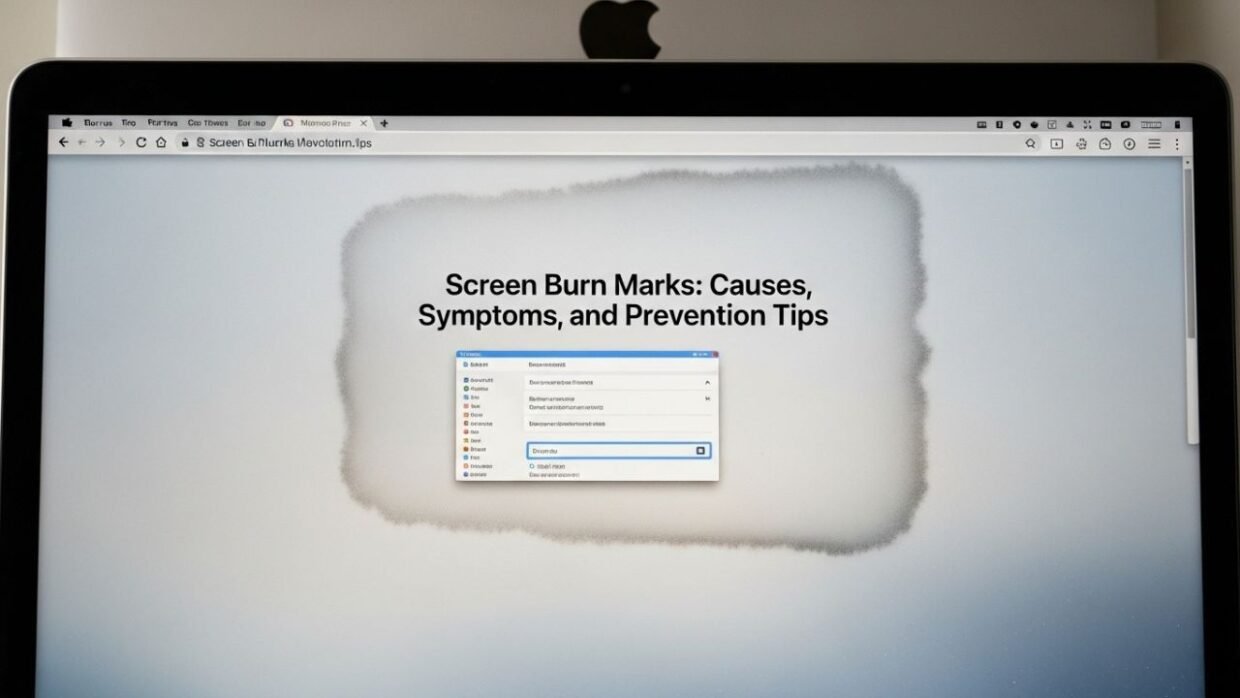
Detecting screen burn marks on your MacBook Pro can be crucial for timely intervention. The first sign often appears as ghostly images or outlines that linger even when the display changes.
You might notice these imprints most clearly against bright backgrounds, where they contrast sharply with the rest of the screen. Common culprits include static elements like toolbars or application icons.
Another symptom is a reduced brightness in certain areas of your screen. If specific sections seem dimmer than others, it could indicate early-stage burn-in.
Pay attention to color inconsistencies too; areas may shift hues and appear washed out compared to surrounding pixels. Regularly check your display by opening different applications to identify persistent patterns that don’t change.
Being vigilant about these signs can help you address issues before they become more pronounced problems affecting your viewing experience.
Prevention Tips for Avoiding Screen Burn Marks on Your MacBook Pro
To keep your MacBook Pro’s screen in top condition, start by adjusting the display settings. Lowering brightness can significantly reduce strain on the pixels.
Utilize a screensaver or enable sleep mode when stepping away from your device. This prevents static images from lingering too long, reducing the risk of burn marks.
Consider rotating apps and windows regularly. By changing what’s displayed frequently, you avoid leaving any single image on-screen for extended periods.
Invest in software that helps manage screen time effectively. Many applications offer features like automatic dimming or window switching to enhance longevity.
Be mindful of prolonged usage with high-contrast visuals. Switching between light and dark themes can help balance pixel wear over time while maintaining an engaging user experience.
How to Fix Existing Screen Burn Marks on Your MacBook Pro
Screen burn marks can be frustrating, but there are ways to improve the situation on your MacBook Pro.
Start by adjusting brightness settings. Lowering brightness reduces strain on the display and may help fade the marks over time.
Another option is to use a screen pixel repair tool. These applications cycle through colors rapidly, which can sometimes rejuvenate stuck pixels and diminish burn-in effects.
Consider running a complete software update too. Sometimes, outdated firmware contributes to display issues. Keeping your system updated ensures optimal performance.
Alternatively, if you’re comfortable with hardware solutions, professional cleaning might help. Technicians can address deeper issues that software fixes cannot resolve.
Always back up important data before attempting any repairs or modifications for peace of mind during the process.
Upgrading Your MacBook Pro for Better Screen Performance
Upgrading your MacBook Pro can significantly enhance screen performance. One of the first steps is to consider a display upgrade if you have an older model. Retina displays offer sharper images and better color accuracy, greatly reducing the risk of burn marks.
Another option is increasing RAM or switching to an SSD. This not only boosts overall system performance but also allows for smoother graphic rendering during intensive tasks like video editing or gaming, minimizing potential screen issues.
Regular software updates are equally important. Apple frequently releases patches that improve display management and address bugs related to screen performance.
If you’re still facing issues, exploring external monitors could be beneficial too. High-quality external displays provide vibrant visuals without putting additional strain on your laptop’s built-in screen. Each upgrade contributes positively towards maintaining optimal viewing experiences while using your MacBook Pro.
Conclusion
MacBook Pro users often cherish the vibrant display and crisp visuals their devices offer. However, screen burn marks can be a significant concern that detracts from that experience. Understanding how to identify, prevent, and address these issues is essential for maintaining your device’s performance.
By being aware of common causes such as prolonged static images or high brightness settings, you can take proactive measures to protect your screen. Recognizing symptoms early on can help you mitigate further damage. Implementing prevention tips like adjusting display settings and utilizing screen savers will extend your MacBook’s lifespan significantly.
If you’re already facing the annoyance of existing burn marks, there are methods available to potentially fix them or minimize their impact. Upgrading components may also enhance overall display quality and performance.
Maintaining vigilance regarding screen care ensures that your MacBook Pro remains in optimal condition for all visual tasks ahead. Taking these steps not only protects your investment but enhances your overall user experience with this powerful machine.